TNPSC Group 4 Photo & Signature Compressor
Prepare each image in your browser, then download both JPEGs together in one ZIP package.
Your TNPSC Group 4 application files
0 of 2 files ready for the ZIP package
Both files are processed locally. Extract the ZIP and upload each JPG to its matching field.
01 Prepare the photographPhotograph.jpg · 20–50 KB
Choose the photo settings requested by your active application. See the TNPSC photo and signature size guide for published references and source details.
Upload your photo
Choose an image or drag and drop it here.
JPG, PNG or WebP · up to 10 MiB / 24 megapixels02 Prepare the signatureSignature.jpg · 10–20 KB
The product default is 400 × 133 px. See the TNPSC photo and signature size guide for published references and source details.
Upload your signature
Choose an image or drag and drop it here.
JPG, PNG or WebP · up to 10 MiB / 24 megapixelsThe 2026 Group IV notice is the source for its published requirements. Extract the ZIP before uploading; the application portal expects the two JPGs in their separate fields. Check your active instructions before submitting; preparing files here does not guarantee portal acceptance.
How to prepare TNPSC Group 4 photo and signature files
- 01
Prepare the TNPSC Group 4 photo
Upload a JPG, PNG or WebP. Crop the photo, choose settings for your active application, and generate Photograph.jpg.
- 02
Prepare the TNPSC Group 4 signature
Upload your signature separately. Keep every pen stroke, check the output settings, and generate Signature.jpg.
- 03
Check both JPGs and download the ZIP
Review each file's pixels and bytes. Download the package when both files are ready, extract the ZIP, and upload each JPG to its matching portal field.
Compare TNPSC signature output sizes
TNPSC Group 4 photo and signature FAQ
TNPSC Group 4 photo questions
Which photo dimensions should I choose for TNPSC Group 4?
Use the dimensions requested by your active application. The printed 2026 photo reference is 130 × 170 px; the editor's separate product default is 3.5 × 4.5 cm at 200 DPI. Check the size guide before choosing a reference.
Can I add my name and photo date?
Yes. Enable the optional name and photo date strip only when your active instructions require it. The strip fits inside the final photo dimensions; preview it before generating the JPG.
Can I replace the photo without preparing the signature again?
Yes. The two editors work independently. Replacing the photo clears its previous output and disables the ZIP download until a new photo is ready. The prepared signature remains available while this page stays open.
TNPSC Group 4 signature questions
What is the default TNPSC Group 4 signature size here?
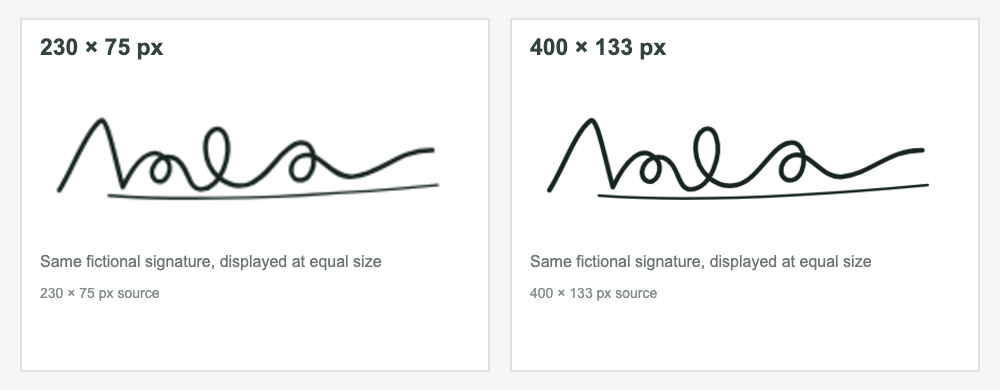
The product default is 400 × 133 px. The printed 2026 notice reference is 230 × 75 px. These are different settings; follow your active portal instructions and use the size guide to compare their sources.
How do I avoid cutting off signature strokes?
Use the full-image fit option to keep the signature on a white canvas, or adjust a manual crop carefully. Enlarge the generated preview and check the first and last strokes before downloading.
Should I upload the ZIP as my signature?
No. The ZIP is a convenient download containing Photograph.jpg and Signature.jpg. Extract it first, then upload Signature.jpg to the signature field and Photograph.jpg to the photo field.